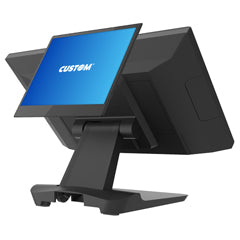

All-in-one POS terminals are touchscreen point-of-sale systems that combine the display, computer, touch interface, ports, and operating system into one compact checkout device. Instead of building a POS station with a separate monitor, desktop computer, touch display, and multiple cables, an all-in-one terminal gives retailers, restaurants, grocery stores, liquor stores, convenience stores, service counters, and kiosk environments a cleaner and more professional way to run POS software.
Spartan POS carries all-in-one POS systems from trusted touchscreen hardware brands, including Elo all-in-one POS systems and MicroTouch all-in-one POS systems. These terminals can be paired with compatible receipt printers, cash drawers, barcode scanners, payment devices, customer displays, label printers, and other POS accessories to build a complete checkout station.
If your business is replacing an older register, upgrading from a desktop PC, moving away from consumer tablets, opening a new location, or standardizing hardware across multiple stores, an all-in-one terminal can help simplify the counter and improve the checkout experience.
Quick Answer: What Is an All-in-One POS Terminal?
An all-in-one POS terminal is a touchscreen computer designed for point-of-sale use. It combines the screen, touch panel, computer, memory, storage, ports, and operating system into one device. Businesses use all-in-one terminals to run POS software, ring up sales, scan items, process orders, print receipts, open cash drawers, manage customer transactions, and support connected checkout peripherals.
All-in-one terminals are best for businesses that want a clean, permanent, commercial POS workstation instead of a separate PC and monitor setup. They are commonly used in retail stores, restaurants, cafes, grocery stores, liquor stores, convenience stores, salons, service counters, kiosks, self-service stations, and customer-facing checkout environments.
Start by browsing the full All-in-One POS Systems collection, then compare Elo All-in-One POS Systems and MicroTouch All-in-One POS Systems based on your POS software, operating system, screen size, performance, ports, and accessories.
Why All-in-One Terminals Are Popular for POS Checkout
All-in-one POS terminals are popular because they solve one of the biggest problems at the checkout counter: clutter. A traditional checkout station may require a computer tower, touch monitor, external power supplies, cables, receipt printer, scanner, cash drawer, payment device, and customer-facing display. An all-in-one terminal reduces the number of core components by combining the computer and touchscreen into one unit.
This creates a cleaner checkout station for employees and a more professional impression for customers. It can also make installation, support, and multi-location standardization easier because the main POS workstation is more consistent from lane to lane.
- Cleaner counter layout: The touchscreen and computer are built into one device.
- Better cashier workflow: Employees can use a touchscreen interface for checkout, order entry, customer lookup, returns, and item search.
- Less cable clutter: A single terminal can reduce the need for a separate monitor, PC, and touch display.
- Professional appearance: All-in-one terminals look better at the counter than mismatched consumer computer setups.
- Commercial POS fit: Many models are designed for retail, restaurant, kiosk, and business environments.
- Peripheral support: Compatible terminals can work with receipt printers, barcode scanners, cash drawers, payment devices, and customer displays.
- Scalability: Multi-location businesses can standardize the same terminal family across several stores.
All-in-One POS Terminals vs Desktop POS Computers vs Tablets
All-in-one terminals are not the only way to run POS software. Some businesses use desktop computers, laptops, tablets, or mobile devices. The best option depends on your POS software, counter layout, operating system, peripheral requirements, support needs, and long-term business workflow.
| POS Device Type | Best For | Advantages | Things to Confirm |
|---|---|---|---|
| All-in-One POS Terminal | Retail checkout, restaurant counters, grocery lanes, liquor stores, convenience stores, service counters, and kiosks. | Clean touchscreen workstation, fewer core components, professional counter appearance, strong fit for fixed checkout stations. | Confirm POS software, operating system, ports, drivers, peripherals, mounting, payment device support, and performance requirements. |
| Desktop POS Computer | Back-office workstations, custom PC environments, or businesses with existing computer hardware standards. | Flexible configuration, easy component replacement, familiar Windows environment for many users. | May require a separate touch monitor, more counter space, more cables, and careful peripheral planning. |
| Tablet POS | Mobile checkout, small counters, tableside ordering, pop-ups, and app-based POS workflows. | Portable, compact, familiar interface, good for lightweight cloud POS environments. | Confirm app compatibility, payment device support, printer support, charging, mounts, durability, and peripheral limits. |
| POS Terminal with Separate Monitor | Businesses that need a modular setup or already have existing hardware. | Can be customized with different monitors, PCs, stands, and accessories. | May create more cable clutter and requires more compatibility checks between components. |
Main Parts of an All-in-One POS Terminal
An all-in-one POS terminal looks simple from the outside, but several hardware details determine whether it will work well for your business. Before choosing a model, review the core components.
| Component | Why It Matters |
|---|---|
| Touchscreen Display | The screen size, resolution, brightness, and touch technology affect how easily employees can use the POS software. |
| Processor | The processor affects speed, multitasking, application performance, and long-term usability. |
| Memory | RAM affects how smoothly the POS software runs, especially with reporting, inventory, browser-based tools, and background services. |
| Storage | Storage matters for the operating system, POS software, local databases, logs, updates, and business applications. |
| Operating System | Common options include Windows and Android. The right choice depends on your POS software requirements. |
| Ports and Connectivity | USB, Ethernet, serial, Wi-Fi, Bluetooth, and other ports affect how printers, scanners, payment devices, and accessories connect. |
| Mounting and Stand | The stand, tilt range, VESA mounting, cable routing, and counter footprint affect usability and installation. |
| Accessory Support | Customer displays, barcode scanners, payment devices, MSR readers, NFC readers, and other accessories may need specific compatibility. |
Elo and MicroTouch All-in-One POS Systems
Spartan POS carries all-in-one systems from leading touchscreen hardware brands, including Elo and MicroTouch. Both brands are commonly used in commercial touchscreen environments, but the right choice depends on the specific model, software requirements, screen size, operating system, and peripheral setup.
| Collection | Best For | Why Consider It |
|---|---|---|
| Elo All-in-One POS Systems | Retail, restaurant, kiosk, customer-facing, and commercial touchscreen POS environments. | Elo is a well-known touchscreen brand with all-in-one POS systems designed for professional business use. |
| MicroTouch All-in-One POS Systems | Retail counters, service counters, restaurant order entry, kiosks, and customer-facing touchscreen workflows. | MicroTouch offers commercial touchscreen systems in multiple screen sizes and configurations for business use. |
| All-in-One POS Systems | Businesses comparing multiple all-in-one terminal brands, screen sizes, operating systems, and configurations. | The full collection helps shoppers compare options across brands and use cases in one place. |
Windows vs Android All-in-One Terminals
One of the most important decisions is the operating system. Many POS terminals are available in Windows or Android configurations. Neither option is automatically better for every business. The correct choice depends on the POS software you plan to run.
| Operating System | Best Fit | What to Confirm |
|---|---|---|
| Windows All-in-One POS Terminals | Traditional POS software, Windows-based retail systems, driver-based peripherals, local database environments, and business applications. | Confirm Windows version, processor, RAM, storage, printer drivers, scanner support, payment device support, and update requirements. |
| Android All-in-One POS Terminals | Cloud POS, app-based checkout, customer-facing screens, kiosk workflows, self-service applications, and lightweight business apps. | Confirm Android version, app compatibility, peripheral support, payment workflow support, memory, storage, and update policy. |
Before ordering, start with your POS software requirements. A terminal can have the right screen size and price but still be the wrong choice if the operating system does not match your POS application.
Choosing the Right Screen Size
All-in-one terminals come in different screen sizes. The best size depends on available counter space, POS software layout, employee workflow, viewing angle, and whether the display will be used by staff, customers, or both.
| Screen Size Range | Best Fit | What to Consider |
|---|---|---|
| Compact Touchscreen Terminals | Small counters, customer-facing displays, kiosk-style screens, secondary stations, and limited-space checkout areas. | Make sure the screen is large enough for employees or customers to use comfortably. |
| 15" to 15.6" All-in-One Terminals | Common POS checkout stations for retail, restaurant, grocery, convenience, liquor, and service businesses. | Often a strong balance of screen space, usability, and counter footprint. |
| 21.5" All-in-One Terminals | Order entry, kiosk workflows, larger menus, visual item grids, self-service, and customer-facing applications. | Confirm counter depth, stand, viewing angle, cable routing, and mounting requirements. |
| 27" and Larger Touchscreen Systems | Large-format customer interaction, self-service, product lookup, kiosk-style workflows, and high-visibility touch applications. | Confirm mounting, available space, performance needs, power, and application layout. |
Best Uses for All-in-One POS Terminals
All-in-one POS terminals are used across many industries because they provide a stable touchscreen workstation for everyday transactions. They are especially useful where employees need to process sales quickly while connecting to printers, scanners, drawers, and payment devices.
| Business Type | How an All-in-One Terminal Helps | Related Hardware |
|---|---|---|
| Retail Stores | Creates a professional checkout station for scanning items, taking payments, printing receipts, processing returns, and looking up customers. | Barcode scanners, receipt printers, cash drawers |
| Restaurants and Quick Service | Supports order entry, modifiers, counter service, receipts, kitchen workflows, and customer checkout. | Receipt printers, cash drawers, POS hardware |
| Grocery Stores | Gives cashiers a touchscreen workstation for item scanning, payment workflows, receipt printing, and mixed basket checkout. | 2D barcode scanners, receipt paper, barcode labels |
| Liquor Stores | Supports fast item lookup, barcode scanning, age-restricted checkout workflows, receipt printing, and payment processing. | Barcode scanners, receipt printers, POS hardware |
| Convenience Stores | Helps create a compact, fast checkout station for high-volume transactions and connected peripherals. | Barcode scanners, cash drawers, receipt paper |
| Service Counters | Useful for customer lookup, invoice payment, appointment checkout, work orders, and front-desk transactions. | All-in-one terminals, receipt printers, cash drawers |
| Kiosks and Customer-Facing Stations | Supports self-service, check-in, product lookup, customer ordering, and interactive touchscreen workflows. | All-in-one systems, Elo systems, MicroTouch systems |
| Multi-Location Businesses | Helps standardize the checkout workstation across stores, simplify training, and reduce support complexity. | POS hardware, all-in-one POS systems |
What Connects to an All-in-One POS Terminal?
The terminal is the center of the checkout station, but most businesses also need peripherals. Before choosing a terminal, confirm how each device will connect and whether your POS software supports the complete setup.
| Peripheral | Why It Matters | Shop Related Hardware |
|---|---|---|
| Receipt Printer | Prints customer receipts, order tickets, return receipts, transaction records, and other POS documents. | Receipt Printers |
| Receipt Paper | Must match the receipt printer’s paper width, roll diameter, roll length, and thermal paper requirements. | Receipt Paper |
| Cash Drawer | Supports cash transactions and may connect through the receipt printer or another supported interface. | Cash Drawers |
| Barcode Scanner | Speeds item entry, reduces manual lookup errors, and supports inventory workflows. | Barcode Scanners |
| 2D Barcode Scanner | Reads QR codes, mobile coupons, IDs, loyalty codes, and modern 2D barcode formats. | 2D Barcode Scanners |
| Wireless Barcode Scanner | Useful when employees need to scan large items, shelves, stockrooms, or products away from the main counter. | Wireless Barcode Scanners |
| Payment Device | Supports card payments, integrated processing, PIN debit, contactless payments, and customer-facing payment workflows when compatible. | Integrated Processing Guide |
| Customer Display | Shows order totals, items, customer prompts, payment instructions, or loyalty information. | POS Hardware |
| Label Printer | Supports price labels, barcode labels, shelf labels, product labels, and inventory labels. | Label Printers |
| Barcode Labels | Important for product labeling, inventory, shelf labels, warehouse workflows, and scan reliability. | Barcode Labels |
Connection Types to Check Before Ordering
All-in-one POS terminals may include several connection options, but not every model has the same ports. The correct terminal must support the devices and workflow used at your checkout counter.
| Connection Type | Common Use | What to Confirm |
|---|---|---|
| USB | Barcode scanners, receipt printers, payment devices, customer displays, keyboards, and accessories. | Confirm the number of available ports and whether the POS software supports USB-connected peripherals. |
| Ethernet | Network receipt printers, internet connection, payment terminals, and business networks. | Confirm network layout, cable routing, static IP needs, and software requirements. |
| Serial | Legacy receipt printers, scales, payment devices, customer displays, and older POS peripherals. | Confirm whether the terminal includes native serial ports or requires adapters. |
| Bluetooth | Some scanners, printers, tablets, or wireless accessories. | Confirm pairing reliability, POS software support, and whether Bluetooth is approved for the business workflow. |
| Wi-Fi | Network access where Ethernet cabling is not available. | Confirm wireless reliability, security, signal strength, and whether the POS software recommends wired networking. |
| Cash Drawer Port | Some systems may support drawer kick connections directly or through a receipt printer. | Confirm whether the cash drawer connects to the printer, terminal, or another supported interface. |
Integrated Payments and All-in-One Terminals
Many businesses use all-in-one terminals as part of an integrated payment workflow. In an integrated setup, the POS software sends the payment amount to the payment device, the customer pays, and the payment result returns to the POS transaction. This can reduce manual entry, speed up checkout, and make reconciliation easier.
However, integrated payments depend on the POS software, payment processor, payment terminal, gateway, operating system, drivers, network, and approved configuration. An all-in-one terminal is only one part of the payment workflow.
For a deeper comparison, read Integrated Processing vs Standalone Credit Card Terminals. If you are planning a complete POS station, also review the POS Hardware Compatibility Guide.
All-in-One Terminals for Kiosks and Customer-Facing Workflows
All-in-one touchscreen systems are not limited to cashier-facing checkout. Larger touchscreen terminals can also be used for self-service kiosks, customer check-in, product lookup, loyalty enrollment, order entry, interactive displays, and customer-facing information stations.
For kiosk and customer-facing applications, screen size, mounting, viewing angle, durability, operating system, app compatibility, and cable management become especially important. Businesses should compare Elo all-in-one systems, MicroTouch all-in-one systems, and the full All-in-One POS Systems collection before choosing a terminal.
All-in-One Terminal Buying Checklist
Use this checklist before choosing an all-in-one POS terminal:
- Which POS software or business application will run on the terminal?
- Does the software require Windows, Android, or another operating system?
- What screen size is best for the checkout counter or customer-facing workflow?
- How much processor performance, RAM, and storage does the software require?
- Does the terminal have enough USB, Ethernet, serial, and accessory ports?
- Will the terminal connect to a receipt printer, barcode scanner, cash drawer, payment device, and customer display?
- Does the receipt printer connect by USB, Ethernet, Bluetooth, serial, or another method?
- Does the cash drawer connect through the receipt printer or directly through another interface?
- Will the terminal sit on a counter, mount to a wall, use a pole mount, or fit into a kiosk?
- Does the checkout lane need a customer-facing display?
- Will the business need integrated payments or a standalone payment terminal?
- Who supports the POS software, terminal, receipt printer, scanner, cash drawer, payment device, and network?
Common Mistakes to Avoid
All-in-one POS terminals can simplify checkout, but choosing the wrong model can create compatibility and support problems. Avoid these mistakes before ordering:
- Buying by screen size only: The terminal must also meet operating system, processor, RAM, storage, port, and software requirements.
- Ignoring POS software requirements: Some POS systems require Windows, Android, specific drivers, or certified hardware.
- Choosing too few ports: Printers, scanners, payment devices, customer displays, and accessories may all need connections.
- Assuming every printer will work: Receipt printer compatibility depends on drivers, interface, operating system, and POS software support.
- Forgetting cash drawer control: Many cash drawers open through a receipt printer, not directly through the terminal.
- Using consumer hardware for commercial checkout: A busy POS counter usually needs hardware designed for daily business use.
- Skipping support planning: Know who supports the terminal, software, peripherals, payment processing, and network before going live.
- Not planning for growth: Multi-location businesses should consider standardizing terminals, peripherals, and spare parts.
Compatibility Guidance
An all-in-one POS terminal should be selected around your POS software first. After the software requirements are confirmed, review the operating system, processor, memory, storage, screen size, ports, drivers, receipt printer, cash drawer, barcode scanner, payment device, customer display, mounting, and accessories.
Compatibility depends on your POS software, operating system, connection type, drivers, accessories, and configuration. Confirm compatibility before ordering.
Before ordering, compare all-in-one POS systems, Elo all-in-one POS systems, and MicroTouch all-in-one POS systems. For help with hardware planning, visit Contact a POS Hardware Expert.
Related POS Hardware and Resources
Build a complete checkout station around the right terminal and compatible accessories:
- All-in-One POS Systems
- Elo All-in-One POS Systems
- MicroTouch All-in-One POS Systems
- POS Hardware
- Receipt Printers
- Receipt Paper
- Cash Drawers
- Barcode Scanners
- 2D Barcode Scanners
- Wireless Barcode Scanners
- Rugged Barcode Scanners
- Mobile Computers
- Label Printers
- Barcode Labels
- Thermal Labels
- Thermal Transfer Ribbons
- Integrated Processing vs Standalone Credit Card Terminals
- POS Hardware Compatibility Guide
- POS Hardware Setup and Troubleshooting
- Authorized POS Hardware Dealer Support
- Why Trust Spartan POS
- Contact a POS Hardware Expert
Why Buy All-in-One POS Terminals from Spartan POS?
Spartan POS helps businesses choose POS hardware for real checkout environments. Instead of selecting a touchscreen terminal by screen size alone, Spartan POS helps customers think through the full setup, including POS software requirements, operating system, receipt printer, cash drawer, scanner, payment device, customer display, labels, mounting, and accessories.
Spartan POS is an authorized dealer for many of the POS hardware brands it sells and supports the products it sells. Whether you are comparing Elo all-in-one POS systems, MicroTouch all-in-one POS systems, or the full All-in-One POS Systems collection, Spartan POS can help review the hardware questions that matter before you order.
For help choosing an all-in-one POS terminal, visit Contact a POS Hardware Expert.
Frequently Asked Questions
What is an all-in-one POS terminal?
An all-in-one POS terminal is a touchscreen computer designed for point-of-sale use. It combines the screen, computer, touch interface, operating system, storage, memory, and ports into one checkout device.
Are all-in-one POS terminals better than desktop computers?
For front-counter checkout, all-in-one POS terminals are often better because they reduce clutter, provide a built-in touchscreen, and create a cleaner workstation. Desktop computers may still make sense for back-office work or custom hardware environments.
Are all-in-one terminals better than tablets?
All-in-one terminals are usually better for fixed checkout stations that need a commercial touchscreen workstation with connected peripherals. Tablets can be useful for mobile checkout, tableside ordering, or lightweight cloud POS workflows.
Should I choose Elo or MicroTouch?
Both brands can be strong choices depending on your POS software, screen size, operating system, performance requirements, ports, and budget. Compare Elo All-in-One POS Systems and MicroTouch All-in-One POS Systems before choosing.
Do all-in-one POS terminals work with receipt printers?
Many all-in-one terminals can work with compatible receipt printers, but compatibility depends on the POS software, operating system, printer model, drivers, connection type, and configuration. Confirm compatibility before ordering.
Can an all-in-one POS terminal open a cash drawer?
Yes, but the setup depends on the POS software and hardware configuration. Many cash drawers connect through a compatible receipt printer, while some setups may use another supported interface.
Can I connect a barcode scanner to an all-in-one terminal?
Yes, many all-in-one terminals can connect to compatible barcode scanners by USB, Bluetooth, wireless base station, or another supported connection method. Confirm scanner compatibility with your POS software and terminal ports.
Are all-in-one POS terminals good for restaurants?
Yes. All-in-one terminals can work well for restaurants, quick-service counters, cafes, bars, and order-entry stations when the POS software, printers, drawers, and payment devices are compatible.
Are all-in-one POS terminals good for retail stores?
Yes. Retail stores often use all-in-one POS terminals for checkout, barcode scanning, returns, receipts, customer lookup, payment workflows, and inventory-related tasks.
Do all-in-one terminals support integrated payments?
They can be part of an integrated payment setup, but payment compatibility depends on the POS software, payment processor, payment terminal, gateway, operating system, drivers, network, and approved configuration.
Should I choose Windows or Android?
Choose the operating system required by your POS software. Windows is common for traditional POS applications and driver-heavy environments. Android may be used for cloud POS, kiosk workflows, or app-based checkout systems.
Where can I shop all-in-one POS terminals?
You can shop the full All-in-One POS Systems collection, compare Elo All-in-One POS Systems, or browse MicroTouch All-in-One POS Systems at Spartan POS.
Bottom Line
All-in-one POS terminals are a strong choice for businesses that want a cleaner, more professional, and more dependable checkout station. They combine the touchscreen and computer into one compact device and can support the printers, scanners, drawers, payment devices, displays, and accessories needed for a complete POS workflow.
Start by browsing the full All-in-One POS Systems collection. Then compare Elo all-in-one POS terminals and MicroTouch all-in-one POS terminals based on your POS software, operating system, screen size, ports, performance, and checkout requirements.
Before ordering, confirm compatibility with your POS software, receipt printer, cash drawer, barcode scanner, payment device, operating system, and complete checkout configuration.