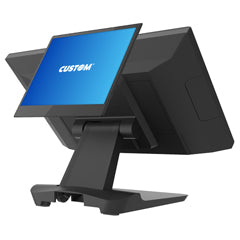

Customer Displays & Pole Displays 101 is the Spartan POS Hardware Academy class for learning how to choose customer-facing displays for retail checkout, grocery counters, convenience stores, liquor stores, restaurants, quick-service counters, pharmacy checkout, hospitality desks, and POS workstations where customers need to see item prices, totals, transaction prompts, order details, or promotional messages.
A customer display may look simple, but compatibility can be restrictive. The right display depends on your POS software, operating system, connection type, mounting style, display format, pole height, countertop layout, power requirements, driver support, and whether the display is used for basic line-item totals, customer prompts, order confirmation, loyalty messages, or advertising.
Spartan POS is an authorized dealer for many leading POS hardware brands, and Spartan POS supports the products it sells. Use this class to compare customer displays with POS hardware, receipt printers, barcode scanners, cash drawers, receipt paper, label printers, and complete checkout accessories.
Quick Answer: What Customer Display Do I Need?
You need a customer display that is supported by your POS software, operating system, terminal or workstation, connection type, and checkout workflow. Basic pole displays are commonly used to show item prices, subtotals, tax, and transaction totals. Larger customer-facing screens may support order details, prompts, promotions, or customer engagement features when the POS software supports them.
For most customer display purchases, start by confirming your exact POS software, whether the display must be USB, serial, or integrated, whether it needs a pole mount or countertop mount, and whether your POS system supports a two-line display, graphical display, or customer-facing screen.
Compatibility depends on your POS software, operating system, connection type, drivers, accessories, and configuration. Confirm compatibility before ordering.
Start Here: Customer Display Buying Path
| Buying Question | Why It Matters | Where to Go Next |
|---|---|---|
| Does your POS software support customer displays? | Not every POS system supports external customer displays, and some only support specific models. | Read the POS Hardware Compatibility Guide |
| Do you need a pole display or a customer-facing screen? | A pole display is usually for transaction totals. A customer-facing screen may support richer content when supported. | Shop POS hardware |
| What connection type does your POS support? | USB, serial, integrated, or networked display support depends on software and hardware configuration. | Read the connection guide |
| Is this for a compact tablet POS setup? | Tablet POS systems may support fewer customer display options than desktop POS systems. | Read iPad & Tablet POS Hardware 101 |
| Are you building a full checkout station? | Customer displays should be planned with printers, scanners, cash drawers, stands, cables, and payment hardware. | Read Receipt Printers 101 |
What Is a Customer Display?
A customer display is a customer-facing POS screen or pole display that shows transaction information during checkout. Depending on the POS system and display type, it may show item names, item prices, quantities, discounts, subtotal, tax, total, payment prompts, customer messages, loyalty prompts, order details, or promotional content.
Customer displays are commonly used with receipt printers, barcode scanners, cash drawers, payment terminals, POS workstations, tablet stands, and other POS hardware.
Main Types of Customer Displays
| Display Type | Best For | Common Use |
|---|---|---|
| Pole Display | Retail checkout, grocery, convenience stores, liquor stores, pharmacy counters | Shows item prices, totals, tax, and basic transaction information. |
| Countertop Customer Display | Compact checkout counters, service desks, hospitality, retail counters | Shows transaction details without requiring a tall pole mount. |
| Integrated Customer Display | All-in-one POS terminals and purpose-built POS systems | Attaches directly to the POS terminal when supported by the terminal manufacturer. |
| Customer-Facing Touchscreen | Modern checkout, customer prompts, order confirmation, loyalty, tipping, payment workflows | May support interactive prompts when supported by the POS software. |
| Second Monitor or Customer Screen | Retail counters, service counters, order review, promotions, customer engagement | May show richer transaction content, images, or prompts depending on software. |
Pole Display vs Customer-Facing Screen
| Feature | Pole Display | Customer-Facing Screen |
|---|---|---|
| Typical Display Format | Basic text display, often line-item and total information. | Larger screen that may show order details, prompts, images, or promotional content. |
| Best For | Traditional retail, grocery, convenience, liquor, pharmacy, and checkout counters. | Modern retail, restaurants, service counters, tablet POS, and customer engagement workflows. |
| Mounting | Usually mounted on a pole behind or beside the POS station. | May be integrated, mounted behind a terminal, placed on a stand, or used as a second screen. |
| Software Support | Usually requires specific POS support, drivers, and connection settings. | Also software-dependent; richer features require explicit POS support. |
| Best Buying Rule | Choose by POS compatibility and connection type. | Choose by POS software support, screen workflow, mounting, and customer interaction needs. |
Common Customer Display Connection Types
Connection type is one of the most important customer display buying factors. A display can be physically correct but still fail if the POS software does not support the display protocol, driver, port, cable, or configuration.
| Connection Type | Best For | Important Notes |
|---|---|---|
| USB | Modern POS workstations and some current POS systems | May require drivers and exact POS software support. |
| Serial | Legacy POS systems, grocery systems, older retail environments | Common in replacement scenarios; communication settings and cables must match. |
| Integrated Terminal Display | All-in-one POS systems and manufacturer-specific terminals | Usually must match the terminal model and manufacturer accessory support. |
| HDMI, DisplayPort, or Video Output | Second-screen customer displays or customer-facing monitors | Requires POS software that can use a second screen for customer-facing content. |
| Network or App-Based | Specialty customer engagement screens or display software workflows | Depends on software, network setup, screen device, and application support. |
For connection planning, read USB vs Ethernet vs Bluetooth POS Hardware.
Customer Display Use Cases
Retail Checkout
Retail stores use customer displays to show item prices, subtotals, tax, discounts, and totals during checkout. A complete retail checkout station may include a receipt printer, receipt paper, barcode scanner, cash drawer, customer display, and payment device.
Grocery and Convenience Stores
Grocery and convenience stores often use customer displays because customers expect clear item pricing and transaction totals. These workflows may also involve POS scales, scanners, receipt printers, cash drawers, and high-volume checkout hardware.
Liquor Stores and Specialty Retail
Liquor stores and specialty retailers may use pole displays to show scanned items and totals while staff scan UPCs, verify items, and complete transactions. Compatibility with the POS system and scanner workflow should be confirmed before ordering.
Restaurant and Quick-Service Counters
Restaurants and quick-service counters may use customer-facing displays to show order details, modifiers, order totals, prompts, tips, loyalty information, or pickup details. These workflows often pair with restaurant POS hardware, kitchen printers, and receipt printers.
Tablet POS and iPad POS Setups
Tablet POS systems may support customer-facing displays differently than desktop systems. Some tablet POS apps support customer displays through approved hardware, while others rely on the tablet screen, payment terminal, or integrated customer-facing device. Read iPad & Tablet POS Hardware 101 before ordering customer display hardware for a tablet setup.
Customer Display Decision Table
| Scenario | Better Starting Choice | Why | Related Hardware |
|---|---|---|---|
| Traditional retail checkout | Pole display or supported customer display | Shows line items, totals, and transaction information to the customer. | Receipt printers, barcode scanners, cash drawers |
| Grocery or convenience store | POS-supported pole display | Customers often expect visible pricing and totals at checkout. | POS hardware |
| Modern customer prompts or loyalty | Customer-facing screen | May support richer prompts, loyalty, tipping, or order confirmation when software supports it. | Compatibility guide |
| Tablet POS checkout | Approved tablet POS customer display option | Tablet systems may only support specific displays or app-based workflows. | Tablet POS Hardware 101 |
| Legacy POS replacement | Same interface or approved replacement model | Legacy systems may require serial displays, specific emulation, or exact communication settings. | Connection guide |
| Restaurant counter order confirmation | Customer-facing screen or POS-supported display | Order details and modifiers may require richer display support than a basic two-line display. | Restaurant POS Hardware 101 |
Mounting and Counter Layout
Customer displays should be visible to the customer without blocking the cashier, receipt printer, barcode scanner, payment device, bagging area, or countertop workflow. Before ordering, confirm pole height, mounting base, cable routing, terminal placement, customer viewing angle, and whether the display needs to rotate or tilt.
| Layout Factor | Why It Matters |
|---|---|
| Pole Height | The display must be visible over the counter without blocking staff movement. |
| Countertop Footprint | Small counters may need compact displays, integrated displays, or alternate mounting. |
| Cable Routing | USB, serial, power, or video cables need clean routing to avoid clutter and damage. |
| Viewing Angle | The customer should be able to read the display clearly during checkout. |
| Integrated Terminal Mount | Some displays attach only to specific POS terminals or stands. |
What You May Need to Order with a Customer Display
| Accessory or Related Item | Why You May Need It | Shop or Learn |
|---|---|---|
| USB, Serial, or Video Cable | May be required depending on display type and POS terminal connection. | Shop POS hardware |
| Power Supply | Some displays are powered by the connection cable, while others require a separate power adapter. | Read what is included with POS hardware |
| Mounting Base or Pole | Needed when the display is not integrated into the terminal or stand. | Shop POS hardware |
| Receipt Printer | Common companion hardware for checkout stations using customer displays. | Shop receipt printers |
| Barcode Scanner | Used with customer displays in retail, grocery, convenience, and specialty checkout workflows. | Shop barcode scanners |
| Cash Drawer | Needed for checkout lanes that accept cash. | Shop cash drawers |
| Receipt Paper | Required for compatible receipt printers used at checkout. | Shop receipt paper |
Common Customer Display Buying Mistakes
- Buying a customer display without confirming POS software support.
- Assuming every USB display works with every POS system.
- Replacing a serial pole display with a USB display without confirming software compatibility.
- Ordering an integrated display that only fits a different terminal model.
- Buying a customer-facing screen when the POS software only supports basic pole displays.
- Forgetting power supplies, cables, pole mounts, mounting bases, or adapters.
- Ignoring counter layout, viewing angle, cable routing, and customer visibility.
- Assuming a payment terminal display replaces a POS customer display.
- Choosing hardware by appearance instead of exact POS compatibility.
- Not testing the display with real transactions before opening for business.
Setup and Troubleshooting Tips
Install the correct driver or utility if required, confirm the COM port or USB device assignment, verify the POS software display settings, check baud rate and serial settings for legacy displays, confirm power, test live transactions, and make sure the display shows the expected item names, totals, and prompts.
For setup help, use the POS Hardware Setup and Troubleshooting Center. For buying help, use Contact a POS Hardware Expert. For warranty and return expectations, read the POS Hardware Warranty and Return Policy Guide.
Compatibility Guidance
Customer display compatibility depends on the exact display model, POS software, operating system, terminal, connection type, driver, display protocol, emulation, cable, power supply, mounting hardware, app support, payment workflow, and configuration. A display may power on correctly but still fail to show transaction data if the POS software does not support the exact model or communication method.
Compatibility depends on your POS software, operating system, connection type, drivers, accessories, and configuration. Confirm compatibility before ordering.
Related Spartan POS Hardware Academy Classes
- POS Hardware Academy
- Receipt Printers 101
- Barcode Scanners 101
- Cash Drawers 101
- iPad & Tablet POS Hardware 101
- Shopify POS Hardware 101
- Restaurant POS Hardware 101
- USB vs Ethernet vs Bluetooth POS Hardware
- POS Hardware Compatibility Guide
Frequently Asked Questions
What is a customer display in a POS system?
A customer display is a customer-facing screen or pole display that shows transaction information such as item prices, subtotals, tax, totals, prompts, or order details depending on the POS software and display type.
What is the difference between a pole display and a customer-facing screen?
A pole display is usually a basic text display for item and total information. A customer-facing screen may show richer content such as order details, prompts, images, loyalty messages, or customer interaction screens when supported by the POS system.
Do all POS systems support customer displays?
No. Customer display support depends on the POS software, operating system, terminal, drivers, connection type, and exact display model. Confirm compatibility before ordering.
Should I choose USB or serial for a pole display?
The right interface depends on your POS software. Modern systems may support USB displays, while legacy systems may require serial displays. Do not change interface type during replacement without confirming software support.
Can I use a second monitor as a customer display?
Sometimes. A second monitor can work only when the POS software supports customer-facing second-screen content and the terminal has the required video output, operating system support, and configuration.
Do customer displays need drivers?
Some customer displays require drivers, utilities, COM port settings, or POS software configuration. Others are integrated into specific terminals. Always confirm the setup requirements for the exact model.
Can a payment terminal replace a customer display?
Not always. A payment terminal may show payment prompts, but it may not show full POS transaction details, line items, or order information unless the POS and payment workflow support that behavior.
What should I buy with a customer display?
Depending on the display, you may need a USB cable, serial cable, video cable, power supply, mounting base, pole, adapter, compatible POS terminal, receipt printer, barcode scanner, cash drawer, or related POS hardware.
Why is my customer display not showing transaction totals?
Common causes include unsupported display model, wrong interface, missing driver, incorrect COM port, wrong baud rate, unsupported POS software setting, bad cable, missing power supply, or incorrect display emulation.
Can Spartan POS help me choose a customer display?
Yes. Spartan POS supports the products it sells and can help customers think through customer display type, pole display replacement, POS software compatibility, USB vs serial connections, mounting, cables, and related checkout hardware.
Bottom Line
The right customer display depends on your POS software, checkout workflow, connection type, mounting style, terminal setup, and customer-facing information needs. Choose a basic pole display for traditional transaction visibility when supported, or a customer-facing screen when your POS software supports richer customer interaction. Build the complete checkout setup with POS hardware, receipt printers, barcode scanners, cash drawers, and receipt paper.