
Zebra Printer Drivers, Downloads, Setup & Replacement Printers
Download official Zebra printer drivers for ZD, ZT, GK, GX and other Zebra printers, troubleshoot common setup problems, and quickly identify the current replacement for a discontinued Zebra desktop or industrial label printer.
Quick Answer: Where Do I Download Zebra Printer Drivers?
Download Zebra printer drivers directly from Zebra's official support website. Whenever possible, use the support page for your exact Zebra model so you also receive the correct firmware, utilities, documentation and setup instructions.
If you are searching for a driver because an older Zebra printer is becoming difficult to support, use the replacement guide directly below before investing additional time or money in legacy hardware.
What Replaces My Old Zebra Printer?
Zebra has officially discontinued several widely installed GK, GX, ZD420 and ZT400-series printers. These are the current replacement families Zebra identifies for some of the most common legacy models.
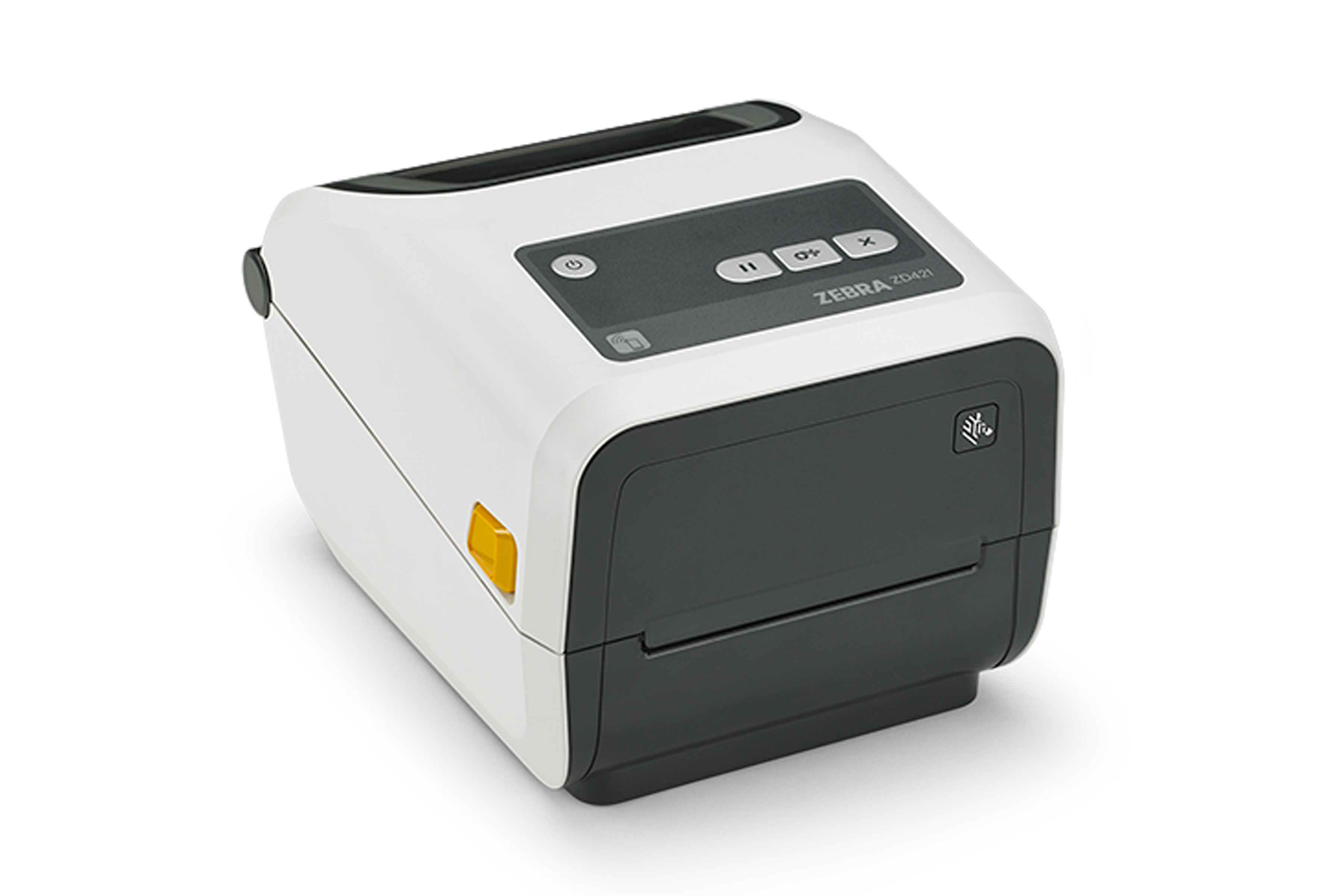
The ZD421 family is Zebra's replacement path for GK420-series desktop printers. Match direct thermal vs. thermal transfer, DPI and connectivity before ordering.
Shop Zebra ZD421 Printers →Zebra identifies the ZD421 as the replacement for the discontinued ZD420 family. Some ZD420 options and accessories are not interchangeable with the ZD421.
ZD421 Upgrade & Setup Guide →Zebra identifies the ZD621 as the current replacement family for GX420-series printers. This is an important distinction: GX420 replacements should not automatically be routed to ZD421.
Shop Current Zebra Desktop Printers →Zebra officially lists ZT411 as the replacement for the discontinued 4-inch ZT410. Match DPI, interface, cutter, peel, rewind and RFID requirements.
ZT410 → ZT411 Upgrade Guide →Zebra officially identifies the ZT421 as the replacement for the discontinued ZT420 for wider industrial label applications.
ZT420 → ZT421 Guide →For LP2844, TLP2844, S4M, older ZM-series printers and other legacy hardware, use the exact MPN, DPI, interface, media width and software requirements before selecting a replacement.
Label Printer Replacement Guide →What information do I need to replace an old Zebra printer?
Start with the complete manufacturer part number from the old printer. Then record the DPI, direct-thermal or thermal-transfer print method, USB/Ethernet/serial/wireless interface, label width, media type, software, and any cutter, peeler, rewinder or RFID options.
Two printers with similar Zebra model names can have very different configurations. Matching the exact old SKU is the safest way to preserve compatibility.
Official Zebra Printer Driver Download Links
These links go to Zebra's official support resources rather than third-party driver-download websites.
All Zebra Printer Drivers
Start here if you are unsure which model-specific Zebra support page to use.
Official Zebra Printer DriversZebra ZD421 Driver
Drivers, firmware, manuals, setup information and troubleshooting for ZD421 printers.
Official ZD421 SupportZebra ZT411 Driver
Official driver and support resources for the current ZT411 industrial printer family.
Official ZT411 SupportZebra GK420d Driver
Legacy Zebra driver and support resources. Zebra identifies ZD421 as the replacement.
Official GK420d SupportZebra Legacy-to-Current Replacement Table
| Legacy Printer | Status / Replacement | Current Model to Evaluate | Important Upgrade Checks | Next Step |
|---|---|---|---|---|
| GK420d | Discontinued | ZD421d | DPI, USB/Ethernet/serial/wireless, media handling, software | Shop ZD421 |
| GK420t | Discontinued | ZD421t | Thermal-transfer ribbon, DPI, interfaces, label size | ZD421 Guide |
| ZD420d / ZD420t | Discontinued | ZD421d / ZD421t | Interface modules and media-handling accessories may differ | Compare ZD421 Models |
| GX420d | Discontinued | ZD621d | Performance class, DPI, interfaces and installed options | Shop Zebra Desktop |
| GX420t | Discontinued | ZD621t | Thermal transfer, ribbon, DPI, interfaces and accessories | Shop Zebra Desktop |
| ZT410 | Discontinued | ZT411 | DPI, RFID, cutter, peel, rewind, Ethernet/wireless and media | ZT411 Upgrade Guide |
| ZT420 | Discontinued | ZT421 | 6-inch media width, DPI, RFID and media-handling configuration | ZT421 Guide |
| LP2844 / TLP2844 | Legacy | Application-specific current desktop model | EPL/ZPL, serial/USB, label width, software and workflow | Replacement Guide |
What replaces a Zebra GX420d or GX420t?
Zebra identifies the ZD621 family as the replacement for GX420-series printers: ZD621d for the direct-thermal GX420d and ZD621t for the thermal-transfer GX420t.
This is different from the GK420 series, which Zebra routes to the ZD421 family.
Which Zebra Printer Driver Do I Need?
| Printer / Situation | Recommended Starting Point | What to Verify |
|---|---|---|
| Current Zebra desktop printer | Model-specific Zebra support page | Exact model, Windows version, DPI, interface and printer language |
| Zebra ZD421 | ZD421 support page | DT vs TT, 203 vs 300 dpi and interface configuration |
| Zebra ZD621 | ZD621 support resources | DPI, direct thermal/thermal transfer, interfaces and application |
| Zebra ZT411 | ZT411 support page | DPI, Ethernet, USB, RFID, cutter/peel/rewind and media |
| Legacy GK/GX/ZT model | Legacy support page plus replacement comparison | Whether continued support is worthwhile versus upgrading |
| Unknown Zebra model | General Zebra driver page | Find the full model and MPN from the printer label first |
Shop Current Zebra Hardware by Printer Type
Shipping, retail, inventory, product and general barcode-label applications.
Shop Zebra Desktop Printers →Warehouse, manufacturing, logistics and higher-volume industrial labeling.
Shop Zebra Industrial Printers →Receiving, route work, shelf labels, mobile inventory and field workflows.
Shop Zebra Mobile Printers →Complete your barcode workflow with Zebra 1D and 2D scanners.
Shop Zebra Scanners →Match the printer to the correct dimensions, material, adhesive and sensing method.
Shop Barcode Labels →Printers, scanners, mobile computers and other Zebra barcode hardware.
Browse Zebra Solutions →Zebra ZD421: Current GK420 and ZD420 Upgrade Path
The ZD421 family is the current replacement path for several widely deployed Zebra desktop printers, including GK420 and ZD420 configurations.
- Direct thermal and thermal-transfer configurations
- 203 dpi and 300 dpi options
- USB plus configuration-dependent Ethernet, serial and wireless options
- Current Zebra Print DNA platform
- Suitable for shipping, inventory, retail and product-label workflows

What replaces a Zebra GK420d?
Zebra lists the ZD421 as the replacement for the discontinued GK420d. For the closest match, compare the GK420d's interface and application requirements with the exact ZD421d configuration before ordering.
Zebra ZT410 and ZT420 Industrial Upgrades
Zebra's verified upgrade path for the discontinued 4-inch ZT410 industrial printer.
ZT411 Driver & Replacement Guide →Zebra's verified replacement path for the wider ZT420 industrial printer.
ZT421 Driver & Replacement Guide →Compare ZT231, ZT411, ZT421, ZT610 and ZT620 before replacing an older industrial printer.
Industrial Printer Comparison →How to Install a Zebra Printer Driver
-
Identify the exact Zebra model and MPN.
Check the printer identification label or configuration report. -
Confirm the printer resolution.
Verify 203, 300, 600 or other DPI configuration where applicable. -
Confirm the connection type.
USB, Ethernet, Wi-Fi, Bluetooth and serial installations may require different setup steps. -
Download the official Zebra driver.
Use Zebra's model-specific support page whenever possible. -
Follow Zebra's installation order.
Some current Zebra models instruct users to install the driver before connecting USB. -
Configure the actual label size.
Enter the physical width and height of the loaded labels. -
Set the correct print method.
Confirm direct thermal versus thermal transfer and install ribbon when required. -
Calibrate the printer.
Calibration helps the printer correctly detect labels, gaps and black marks. -
Print a test label.
Verify basic operation before troubleshooting the business application. -
Test from your POS, WMS, shipping or label software.
Confirm printer selection, page size and application-specific settings.
Zebra Printer Installed but Not Printing?
| Problem | Likely Cause | What to Check |
|---|---|---|
| Printer shows Offline | Wrong port, IP change or cable/network issue | Windows port, IP address, Ethernet/USB connection and network status |
| Wrong label size | Driver or application page size mismatch | Label width, height, orientation and application setup |
| Printer skips labels | Calibration or sensor problem | Gap/black-mark sensing, media type and calibration |
| Blank labels | Wrong media or print method | Direct thermal vs thermal transfer, ribbon, orientation and calibration |
| Barcode is blurry | Speed, darkness or supply mismatch | Print speed, darkness, labels, ribbon and printhead condition |
| Windows works but application does not | Application configuration | Printer selection, label template, driver mapping and document size |
Direct Thermal vs. Thermal Transfer
Prints on heat-sensitive label material without a ribbon.
Shop Zebra Printers →Uses ribbon with compatible labels for greater durability and longer label life.
Zebra Ribbon Guide →Match label dimensions, core size, sensing method, adhesive and print method.
Shop Barcode Labels →Build the Complete Zebra Barcode System
Choose desktop, industrial or mobile hardware based on label size, volume and environment.
Shop Zebra Printers →Select the correct size, material, adhesive, core and sensing method.
Shop Barcode Labels →Match thermal-transfer ribbon to the printer, label material and application.
Choose Zebra Ribbons →Add compatible Zebra scanning for inventory, warehouse, POS and fulfillment.
Shop Zebra Scanners →Create professional shipping, inventory, compliance and barcode labels.
Shop BarTender Software →Send Spartan POS your old Zebra MPN and workflow requirements for replacement guidance.
Ask Spartan POS →Related Zebra Driver, Upgrade & Buying Guides
Frequently Asked Questions
Where can I download Zebra printer drivers?
Download Zebra printer drivers from Zebra's official support website. Use the support page for your exact printer whenever possible.
What replaces the Zebra GK420d?
Zebra identifies the ZD421 as the replacement for the discontinued GK420d. For the closest match, verify interface, DPI, media and software requirements before ordering.
What replaces the Zebra GK420t?
Zebra identifies the ZD421 thermal-transfer family as the replacement path for the GK420t. Confirm ribbon, DPI and interface requirements before upgrading.
What replaces the Zebra ZD420?
Zebra identifies the ZD421 as the replacement for discontinued ZD420 configurations. Some accessories and field-installable options are not interchangeable, so verify the exact setup.
What replaces the Zebra GX420d?
Zebra identifies the ZD621d as the direct replacement for the GX420d. GX420 owners should therefore evaluate ZD621 rather than automatically assuming ZD421.
What replaces the Zebra GX420t?
Zebra identifies the ZD621t as the direct replacement for the GX420t. Match the thermal-transfer configuration, DPI, connectivity and application before ordering.
What replaces the Zebra ZT410?
Zebra officially lists the ZT411 as the replacement for the discontinued ZT410.
What replaces the Zebra ZT420?
Zebra officially identifies the ZT421 as the replacement for the discontinued ZT420. Compare media width, DPI, RFID and media-handling options before upgrading.
Should I keep my old Zebra printer if it still works?
Possibly. If the printer is reliable and remains compatible with your software, operating system, network and supplies, there may be no immediate need to replace it. Replacement becomes more attractive when driver support, parts availability, connectivity or downtime becomes a recurring problem.
Can I use the same labels after replacing my Zebra printer?
Often, but not always. Confirm label width, roll diameter, core size, sensing method, print method and ribbon requirements for the replacement printer.
Can I use my old Zebra accessories with the replacement printer?
Do not assume accessories are interchangeable between generations. Connectivity modules, cutters, peelers, power components and other accessories may differ even when Zebra identifies a newer model as the replacement family.
Why is my Zebra printer skipping labels?
Skipped labels are commonly caused by incorrect media dimensions, sensor configuration or calibration. Verify gap, notch or black-mark sensing and recalibrate the printer when required.
Why is my Zebra printer printing blank labels?
Check direct thermal versus thermal-transfer configuration, ribbon requirements, media orientation, calibration and darkness settings.
Can Spartan POS help identify the exact replacement for my Zebra printer?
Yes. Provide the existing manufacturer part number, DPI, interface, label size, print method, software, and any cutter, peeler, rewinder or RFID requirements.
Need a Zebra Driver, Replacement Printer or Complete Barcode Setup?
Spartan POS sells current Zebra desktop, industrial and mobile printers, along with barcode scanners, labels, ribbons and related commercial barcode hardware.
Replacing an older Zebra? Send us the complete model or manufacturer part number, DPI, interface, label dimensions and software you use. We can help identify the appropriate current upgrade instead of making you guess from the model family alone.