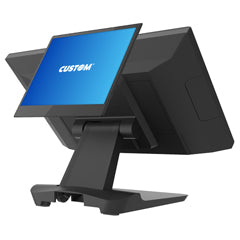

POS Hardware Troubleshooting 101 is the Spartan POS Hardware Academy class for diagnosing common problems with receipt printers, barcode scanners, cash drawers, label printers, mobile computers, POS scales, customer displays, kitchen printers, tablet POS hardware, and warehouse barcode equipment.
Most POS hardware issues come down to compatibility, connection type, drivers, cables, power supplies, paper or label loading, printer settings, scanner modes, cash drawer wiring, network setup, software configuration, or missing accessories. This guide helps you troubleshoot the most common problems before replacing hardware.
Spartan POS is an authorized dealer for many leading POS hardware brands, and Spartan POS supports the products it sells. Use this class alongside POS Hardware Setup and Troubleshooting Center, POS Hardware Compatibility Guide, What’s Included with POS Hardware?, and Contact a POS Hardware Expert.
Quick Answer: How Do I Troubleshoot POS Hardware?
Start with the basics: confirm power, cables, connection type, operating system, POS software support, drivers, firmware, paper or label loading, network status, and the exact model being used. Then isolate the issue by testing one device at a time. A printer problem may actually be a driver, cable, paper, network, cash drawer, or POS software configuration issue.
The fastest troubleshooting path is to identify the exact hardware model, confirm the interface, check what is included in the box, verify software compatibility, test with known-good cables and supplies, then review the device-specific troubleshooting section below.
Compatibility depends on your POS software, operating system, connection type, drivers, accessories, and configuration. Confirm compatibility before ordering.
Start Here: POS Hardware Troubleshooting Path
| Step | What to Check | Why It Matters |
|---|---|---|
| 1. Confirm the exact model | Brand, model number, SKU, interface, and configuration. | Similar-looking devices may have different USB, Ethernet, Bluetooth, serial, Wi-Fi, or printer-driven versions. |
| 2. Confirm power | Power adapter, outlet, power switch, cradle, battery, and device lights. | Many problems are caused by missing or incorrect power supplies. |
| 3. Confirm cables and accessories | USB cable, Ethernet cable, serial cable, cash drawer cable, scanner cradle, printer power supply, batteries, and adapters. | Hardware may not include every cable or accessory required for your setup. |
| 4. Confirm software support | POS software approved hardware list, operating system, drivers, app version, and configuration. | A device can work physically but still be unsupported by the software. |
| 5. Test the connection | USB port, Ethernet network, Bluetooth pairing, Wi-Fi signal, serial settings, or printer-driven drawer cable. | Connection issues are one of the most common POS hardware failure points. |
| 6. Test with known-good supplies | Receipt paper, labels, ribbons, ink ribbons, batteries, and cables. | Bad supplies can look like hardware failure. |
| 7. Isolate the device | Test the device outside the POS software when possible. | This helps determine whether the issue is hardware, software, driver, network, or configuration. |
Common POS Hardware Problems by Category
| Hardware | Common Problem | Where to Start |
|---|---|---|
| Receipt Printers | Not printing, printing blank receipts, offline status, paper feed issues, cash drawer not opening. | Check paper loading, driver, interface, power, network, and cash drawer cable. |
| Barcode Scanners | Not scanning, wrong characters, no data entry, Bluetooth pairing issues, cannot scan QR codes. | Check scanner mode, barcode type, connection, pairing, symbology settings, and software focus. |
| Cash Drawers | Drawer does not open, opens at wrong time, wrong cable, key lock issue. | Check whether the drawer is printer-driven, USB, manual, or POS-terminal controlled. |
| Label Printers | Misaligned labels, skipped labels, blank labels, poor barcode quality, ribbon errors. | Check label size, sensor type, calibration, print method, ribbon loading, driver, and template. |
| Mobile Computers | Won’t charge, Wi-Fi issues, app problems, scanner not reading, battery drains quickly. | Check battery, cradle, charger, Wi-Fi profile, app support, scan settings, and operating system. |
| POS Scales | No weight in POS, wrong weight, unstable reading, software does not recognize scale. | Check interface, scale mode, drivers, capacity, calibration, POS software support, and cable. |
| Customer Displays | No transaction totals, blank display, wrong characters, not detected by POS. | Check USB or serial settings, driver, POS display support, power, and emulation. |
| Tablet POS Hardware | Bluetooth drops, printer not found, scanner not pairing, cash drawer not opening. | Check POS app support, tablet OS, Bluetooth mode, network stability, and approved hardware list. |
Receipt Printer Troubleshooting
Receipt printer issues are common in retail checkout, restaurants, grocery, hospitality, and tablet POS environments. Start by confirming the exact printer model, connection type, power supply, paper size, driver, and POS software support.
Receipt Printer Not Printing
- Confirm the printer is powered on and has no error lights.
- Confirm the correct receipt paper is loaded in the correct direction.
- Confirm the printer is selected inside the POS software.
- Check the USB, Ethernet, Bluetooth, Wi-Fi, or serial connection.
- Restart the printer, POS terminal, tablet, or workstation.
- Confirm the printer driver, utility, or app settings are installed when required.
- For Ethernet printers, confirm IP address, network connection, and printer routing.
Receipt Printer Printing Blank Paper
- Thermal paper may be loaded upside down.
- The paper may not be thermal paper.
- The printer may require bond paper and an ink ribbon if it is an impact printer.
- The printhead or cover may not be closed properly.
- The printer settings may not match the paper type or printer model.
For printer selection, read Receipt Printers 101. For paper sizing, use the Receipt Paper Size Guide. For restaurant printer issues, read Kitchen Printers 101 and Thermal vs Impact Receipt Printers.
Barcode Scanner Troubleshooting
Barcode scanner problems often come from scanner mode, barcode type, Bluetooth pairing, USB keyboard emulation, software cursor focus, unsupported symbologies, or using a 1D scanner when a 2D scanner is required.
Barcode Scanner Not Scanning
- Confirm the scanner has power or battery charge.
- Confirm the USB cable, receiver, cradle, or Bluetooth pairing is working.
- Test the scanner in a simple text field to see whether data appears.
- Confirm the barcode type is supported by the scanner.
- Confirm the scanner is configured for the correct mode.
- Clean the scanner window and test with a known-good barcode.
- Check whether the barcode is too small, damaged, low contrast, or poorly printed.
Scanner Reads the Barcode but Nothing Appears in the POS
- The cursor may not be active in the correct POS field.
- The scanner may be in the wrong communication mode.
- The POS software may not support the scanner model or pairing method.
- Bluetooth scanners may be paired to the wrong tablet, phone, or workstation.
- The scanner may need a carriage return, tab, or suffix setting depending on software behavior.
For scanner selection, read Barcode Scanners 101. For QR codes, phone-screen scanning, and PDF417 labels, read 1D vs 2D Barcode Scanners. Browse barcode scanners and Shopify POS compatible barcode scanners.
Cash Drawer Troubleshooting
Cash drawers usually fail to open because of the wrong cable, wrong connection method, incorrect printer settings, missing drawer-kick configuration, lock position, or unsupported POS hardware setup. Many cash drawers do not connect directly to the POS terminal. They often connect to the receipt printer.
Cash Drawer Does Not Open
- Confirm whether the drawer is printer-driven, USB, manual, or terminal-driven.
- Check that the cash drawer cable is connected to the correct port.
- Confirm the receipt printer is powered on and printing correctly.
- Check the key lock position.
- Confirm cash drawer open commands are enabled in the POS software.
- Confirm the drawer cable matches the drawer and printer.
- Test whether the drawer opens manually with the key.
Browse cash drawers and read Cash Drawers 101. For checkout station planning, also review Receipt Printers 101 because many drawer setups depend on the receipt printer.
Label Printer Troubleshooting
Label printer problems often involve media calibration, label size, gap sensor settings, black mark settings, roll loading, ribbon loading, print method, driver settings, or software template mismatch.
Labels Are Misaligned or Skipping
- Calibrate the label printer.
- Confirm the label size in the printer driver and label software.
- Confirm the media sensor is set for gap, black mark, notch, or continuous media.
- Confirm the label roll is loaded straight and feeding properly.
- Check for label liner dust, debris, or sensor blockage.
- Confirm the software template matches the physical label size.
Label Printer Prints Blank Labels
- Confirm whether the printer is direct thermal or thermal transfer.
- For direct thermal, confirm the labels are thermal labels and loaded correctly.
- For thermal transfer, confirm the ribbon is loaded correctly and matches the label material.
- Check print darkness and print speed settings.
- Confirm the printhead is clean and the printer cover is closed.
Barcode Labels Do Not Scan
- Confirm barcode size, contrast, quiet zones, and print resolution.
- Confirm the scanner supports the barcode type.
- Check whether the label material or ribbon is smearing.
- Reduce print speed or adjust darkness if barcode edges are poor.
- Test with the actual barcode scanner or mobile computer used in the workflow.
For label printer buying and setup, read Label Printers 101, Barcode Labels 101, Thermal Transfer Ribbons 101, and Desktop vs Industrial Label Printers. Shop label printers, barcode labels, thermal labels, and thermal transfer ribbons.
Mobile Computer Troubleshooting
Mobile computer issues may involve battery health, charging cradles, Wi-Fi networks, enterprise apps, scan engine settings, operating system versions, device management, login credentials, or software licensing.
Mobile Computer Will Not Charge
- Confirm the battery is seated correctly.
- Test the charging cradle, power supply, and outlet.
- Check charging contacts for dirt or damage.
- Try a known-good battery or cradle if available.
- Confirm the correct power supply is being used.
Mobile Computer Scanner Does Not Read Barcodes
- Confirm the scan engine is enabled in the app or device settings.
- Test with a known-good barcode.
- Confirm the barcode symbology is enabled.
- Clean the scanner window.
- Check whether the barcode is damaged, low contrast, too small, or poorly printed.
Mobile Computer Will Not Connect to Wi-Fi
- Confirm SSID, password, security settings, and network coverage.
- Check whether the device supports the required Wi-Fi band and authentication method.
- Restart the device and access point if needed.
- Confirm date and time settings if authentication fails.
- Check whether enterprise Wi-Fi certificates or device management settings are required.
For mobile hardware selection, read Mobile Computers 101 and Mobile Computer vs Barcode Scanner. Browse mobile computers and related barcode scanners.
POS Scale Troubleshooting
POS scale problems often involve interface support, drivers, communication settings, calibration, capacity, legal-for-trade requirements, cable type, or POS software configuration. A scale may weigh correctly on its own but still fail to send weight data to the POS system.
Scale Does Not Send Weight to POS
- Confirm the exact scale model is supported by the POS software.
- Confirm the connection type: USB, serial, Ethernet, or another supported interface.
- Check drivers, scale mode, and communication settings.
- Confirm the POS software is configured for the correct scale model.
- Test the cable and port.
- Confirm the scale is stable, level, powered, and not overloaded.
For scale selection, read POS Scales 101. For broader compatibility planning, use the POS Hardware Compatibility Guide.
Customer Display Troubleshooting
Customer displays and pole displays often require exact POS software support. A display may power on but still not show transaction totals if the driver, emulation, COM port, USB device assignment, or POS configuration is wrong.
Customer Display Is Blank or Not Showing Totals
- Confirm the display model is supported by the POS software.
- Check the USB, serial, video, or integrated connection.
- Confirm power supply requirements.
- Install required drivers or utilities.
- Check COM port, baud rate, and emulation settings for serial displays.
- Test with a live transaction inside the POS software.
For display selection, read Customer Displays & Pole Displays 101. For checkout planning, review Receipt Printers 101, Barcode Scanners 101, and Cash Drawers 101.
Tablet POS Troubleshooting
Tablet POS setups often have stricter compatibility than desktop POS systems. iPad, Android, and Windows tablet setups may only support specific printers, scanners, cash drawers, payment devices, and label printers.
Tablet POS Cannot Find Printer or Scanner
- Confirm the hardware is supported by the POS app.
- Confirm the tablet operating system version is supported.
- Check Bluetooth pairing, Wi-Fi network, Ethernet connection, or USB adapter support.
- Restart the tablet, POS app, and hardware.
- Confirm the device is not paired to a different tablet or workstation.
- Check whether firmware or app updates changed compatibility.
For tablet hardware selection, read iPad & Tablet POS Hardware 101. For Shopify POS, read Shopify POS Hardware 101 and browse Shopify POS compatible barcode scanners.
Network Troubleshooting for POS Hardware
Network issues are common with Ethernet printers, Wi-Fi printers, network label printers, shared workstations, kitchen printers, and cloud POS systems. A device may be powered on but unreachable if the IP address, subnet, router, firewall, access point, or POS routing is wrong.
| Network Problem | What to Check |
|---|---|
| Printer not found | IP address, network cable, router, subnet, printer network settings, and POS printer configuration. |
| Wi-Fi device disconnects | Signal strength, interference, access point placement, power saving settings, and network congestion. |
| Multiple devices cannot print | Shared printer settings, print server, driver installation, network permissions, and POS routing. |
| Kitchen printer misses orders | Network stability, printer IP reservation, order routing, printer status, and POS software settings. |
| Label printer prints from one computer only | USB vs network connection, shared printer settings, drivers, and workstation access. |
For connection planning, read USB vs Ethernet vs Bluetooth POS Hardware.
Common Error Patterns and Likely Causes
| Symptom | Likely Cause | First Fix to Try |
|---|---|---|
| Printer powers on but does not print | Driver, POS configuration, connection type, network issue, or wrong selected printer. | Print a test page or test print outside the POS software. |
| Printer prints blank | Wrong paper type, paper loaded upside down, wrong print method, or missing ribbon. | Confirm thermal paper direction or ribbon loading. |
| Scanner beeps but no data appears | Wrong scanner mode, cursor focus issue, unsupported app behavior, or pairing problem. | Test scanner input in a simple text field. |
| Cash drawer does not open | Wrong cable, receipt printer issue, drawer lock, or missing drawer-kick command. | Confirm printer-driven drawer setup and cable compatibility. |
| Labels skip or drift | Calibration issue, wrong label size, sensor mismatch, or template mismatch. | Calibrate printer and confirm label size in software. |
| Barcode labels do not scan | Poor print quality, wrong barcode type, low contrast, missing quiet zone, or scanner limitation. | Print a larger test barcode and scan with known-good scanner. |
| Bluetooth device disconnects | Battery, pairing conflict, distance, interference, tablet OS, or app support issue. | Forget and re-pair the device, then test close to the tablet. |
| Device worked before but stopped after update | Driver, firmware, operating system, or POS app update changed behavior. | Check current software support and re-confirm hardware compatibility. |
What to Check Before Replacing Hardware
- Is the device supported by the current POS software version?
- Is the correct connection type being used?
- Are the correct drivers, utilities, apps, or firmware installed?
- Is the power supply correct for the device?
- Are all required cables, cradles, batteries, and adapters present?
- Are the correct receipt paper, barcode labels, thermal labels, thermal transfer ribbons, or ink ribbons being used?
- Has the device been tested outside the POS software when possible?
- Has the device been tested with a known-good cable, port, outlet, paper roll, label roll, or battery?
- Did the issue start after an app, operating system, driver, network, or firmware update?
- Is the hardware actually the correct version, interface, and configuration for the workflow?
When to Contact Spartan POS
Contact Spartan POS before replacing hardware when you are unsure whether the issue is compatibility, accessories, software configuration, supplies, or hardware failure. This is especially important when replacing legacy printers, serial devices, kitchen printers, cash drawers, POS scales, tablet POS hardware, or label printers used in active checkout, restaurant, shipping, or warehouse workflows.
Use Contact a POS Hardware Expert for buying or compatibility help. Use Authorized POS Hardware Dealer Support and Why Trust Spartan POS? for more information about Spartan POS support and trusted sourcing.
Related Spartan POS Hardware Academy Classes
- POS Hardware Academy
- POS Hardware Compatibility Guide
- Receipt Printers 101
- Barcode Scanners 101
- Cash Drawers 101
- Label Printers 101
- Mobile Computers 101
- iPad & Tablet POS Hardware 101
- Kitchen Printers 101
- Shipping Station Hardware 101
- Customer Displays & Pole Displays 101
Frequently Asked Questions
Why is my POS hardware not working?
Common causes include unsupported hardware, wrong connection type, missing drivers, bad cables, missing power supplies, incorrect paper or labels, Bluetooth pairing issues, network problems, software configuration, or missing accessories.
Why is my receipt printer not printing?
Your receipt printer may not be selected in the POS software, may have the wrong driver, may be offline, may be on the wrong network, may have paper loaded incorrectly, or may be using the wrong interface. Start by checking power, paper, connection, driver, and POS printer settings.
Why is my receipt printer printing blank receipts?
Blank receipts are often caused by thermal paper loaded upside down, non-thermal paper in a thermal printer, missing ink ribbon in an impact printer, wrong paper type, or a printer cover that is not fully closed.
Why is my barcode scanner not entering data?
The scanner may be in the wrong mode, paired to the wrong device, missing a receiver or cradle, not supported by the POS software, or scanning into a field that is not active. Test the scanner in a simple text field first.
Why won’t my cash drawer open?
A cash drawer may not open because the receipt printer is not connected, the drawer cable is wrong, the key lock is in the wrong position, the POS software is not sending the drawer-open command, or the drawer type is not supported by the setup.
Why are my labels not lining up?
Label alignment problems are usually caused by calibration issues, wrong label size settings, wrong sensor mode, template mismatch, label roll loading problems, or driver settings that do not match the physical media.
Why are my barcode labels not scanning?
Barcode labels may not scan because of poor print quality, low contrast, wrong barcode size, missing quiet zones, wrong barcode type, damaged labels, ribbon mismatch, printer resolution, or a scanner that does not support the barcode format.
Why does my Bluetooth POS hardware keep disconnecting?
Bluetooth disconnections can be caused by low battery, pairing conflicts, distance, interference, tablet operating system issues, app limitations, power-saving settings, or unsupported hardware.
Should I replace POS hardware that stopped working?
Not immediately. First confirm power, cables, supplies, drivers, software support, connection type, and configuration. Many POS hardware issues are setup or compatibility problems rather than true hardware failure.
Can Spartan POS help troubleshoot POS hardware?
Yes. Spartan POS supports the products it sells and can help customers think through compatibility, replacement options, cables, power supplies, receipt paper, labels, ribbons, scanner types, printer interfaces, cash drawer connections, and related POS hardware.
Bottom Line
Most POS hardware troubleshooting starts with the same core checks: exact model, software compatibility, power, cables, connection type, drivers, accessories, supplies, and configuration. Before replacing equipment, isolate the issue and test the device with known-good supplies and connections. Browse POS hardware, receipt printers, barcode scanners, cash drawers, label printers, mobile computers, receipt paper, barcode labels, and thermal transfer ribbons when building or replacing a reliable POS hardware setup.